

M2 Download provides easy installation instructions for Android, iOS, and Desktop devices.
Table of Contents
Why Choose M2 Download
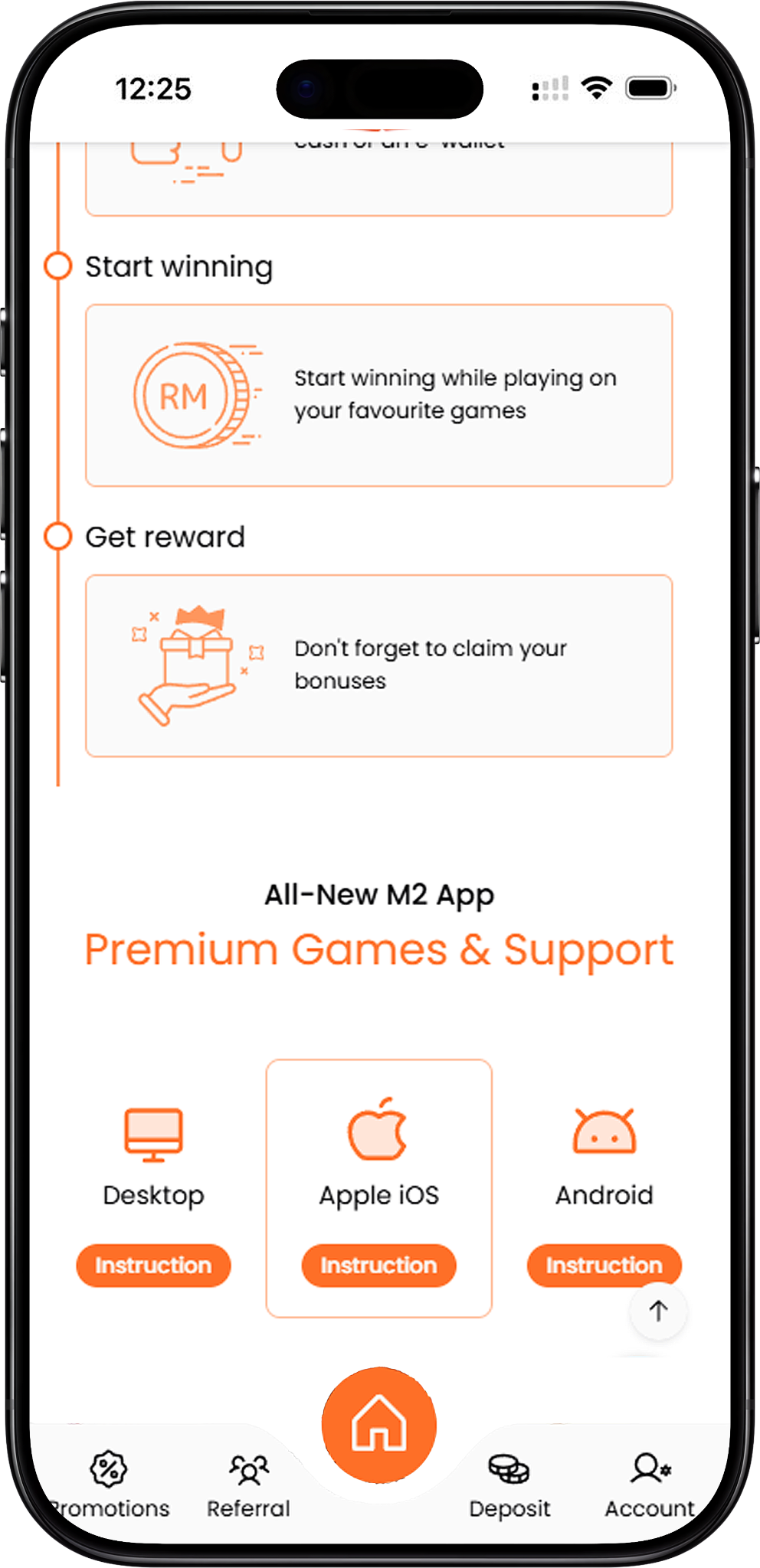
M2 Download offers installation guidance for Android, Desktop (Windows & macOS), and Apple iOS devices. Follow the appropriate installation instructions according to your device. Before installing, you may visit Home, Register, or Login. The official website can also be accessed through the naked URL m2myr.com.
Android Download Steps
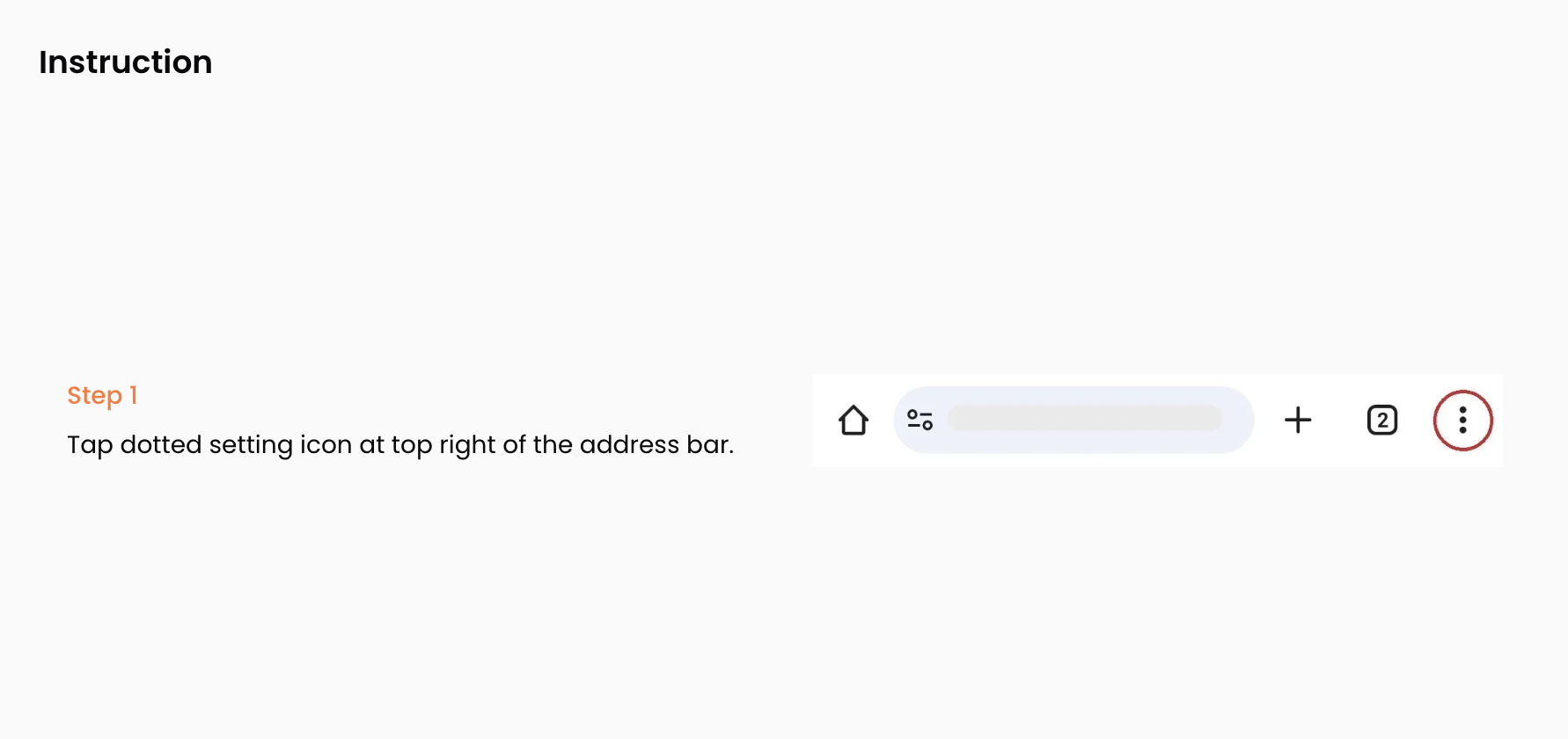
Step 1 — Open the Browser Menu
Open the official website using your Android browser. Tap the three-dot menu located at the top-right corner of the address bar to open the browser options. If you have not created an account yet, visit Register before installation.
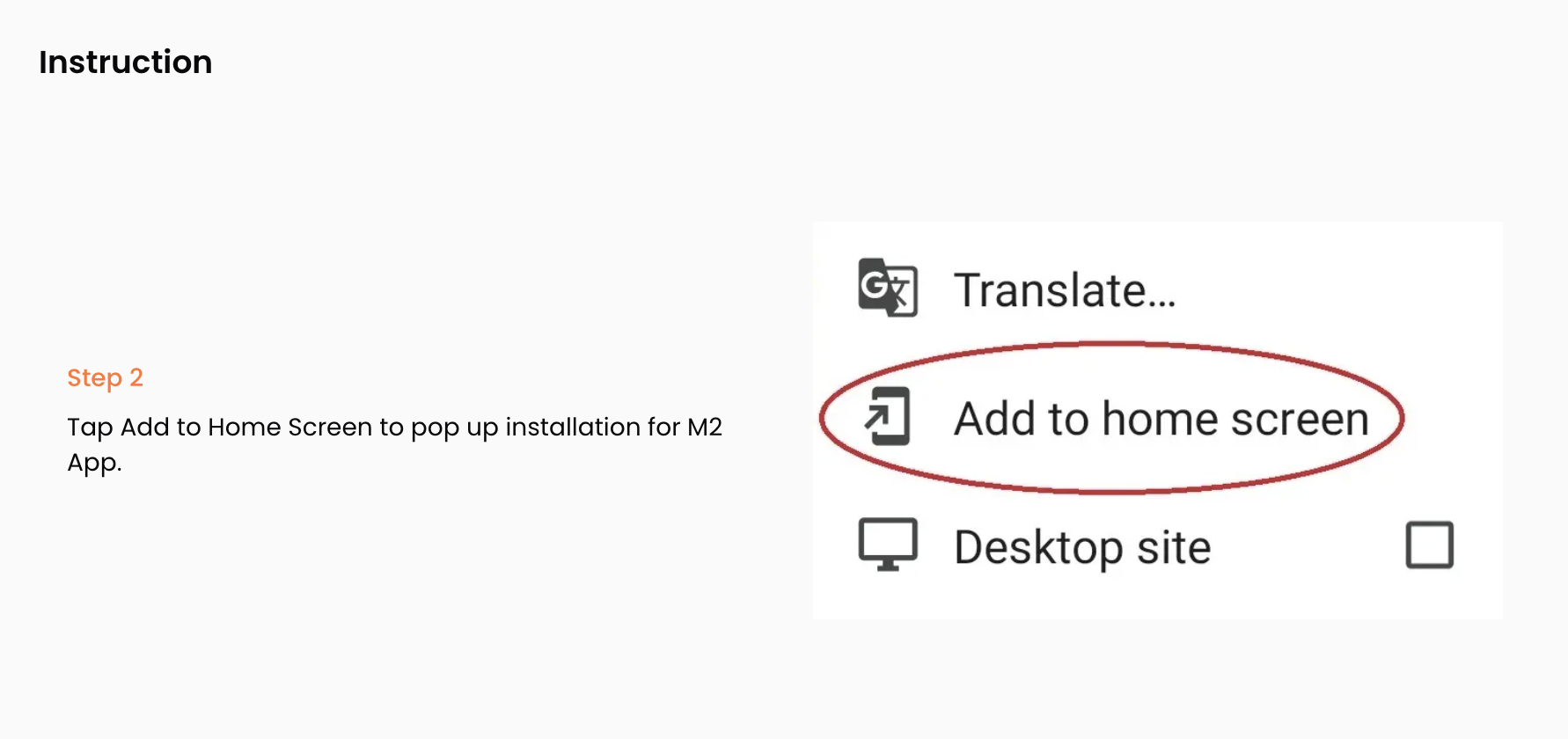
Step 2 — Select Add to Home Screen
From the browser menu, tap Add to Home Screen to display the installation prompt for the M2 application.
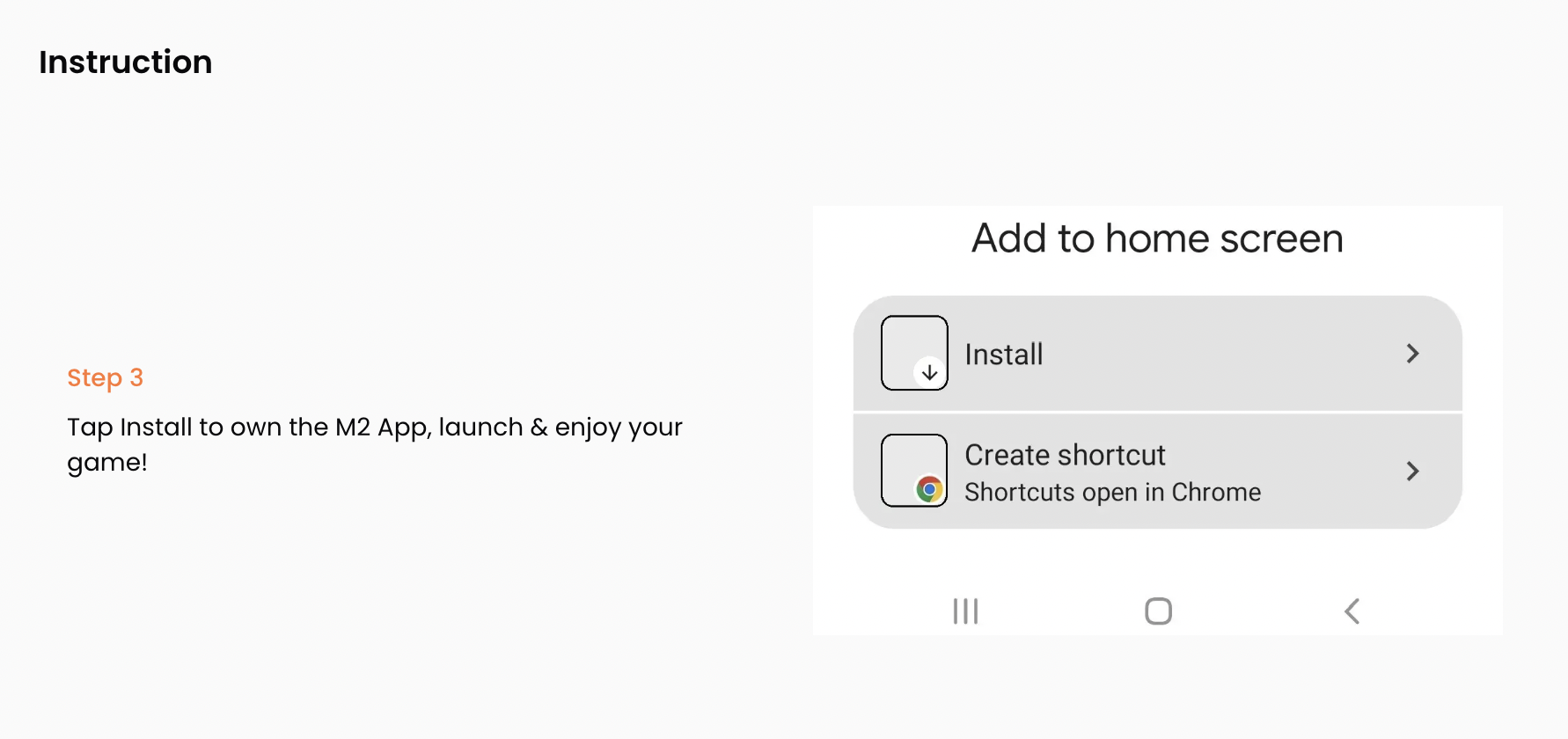
Step 3 — Install the Application
Select Install to add the M2 application to your Android device. Once installation is complete, launch the application and continue to Login.
Desktop Download Steps
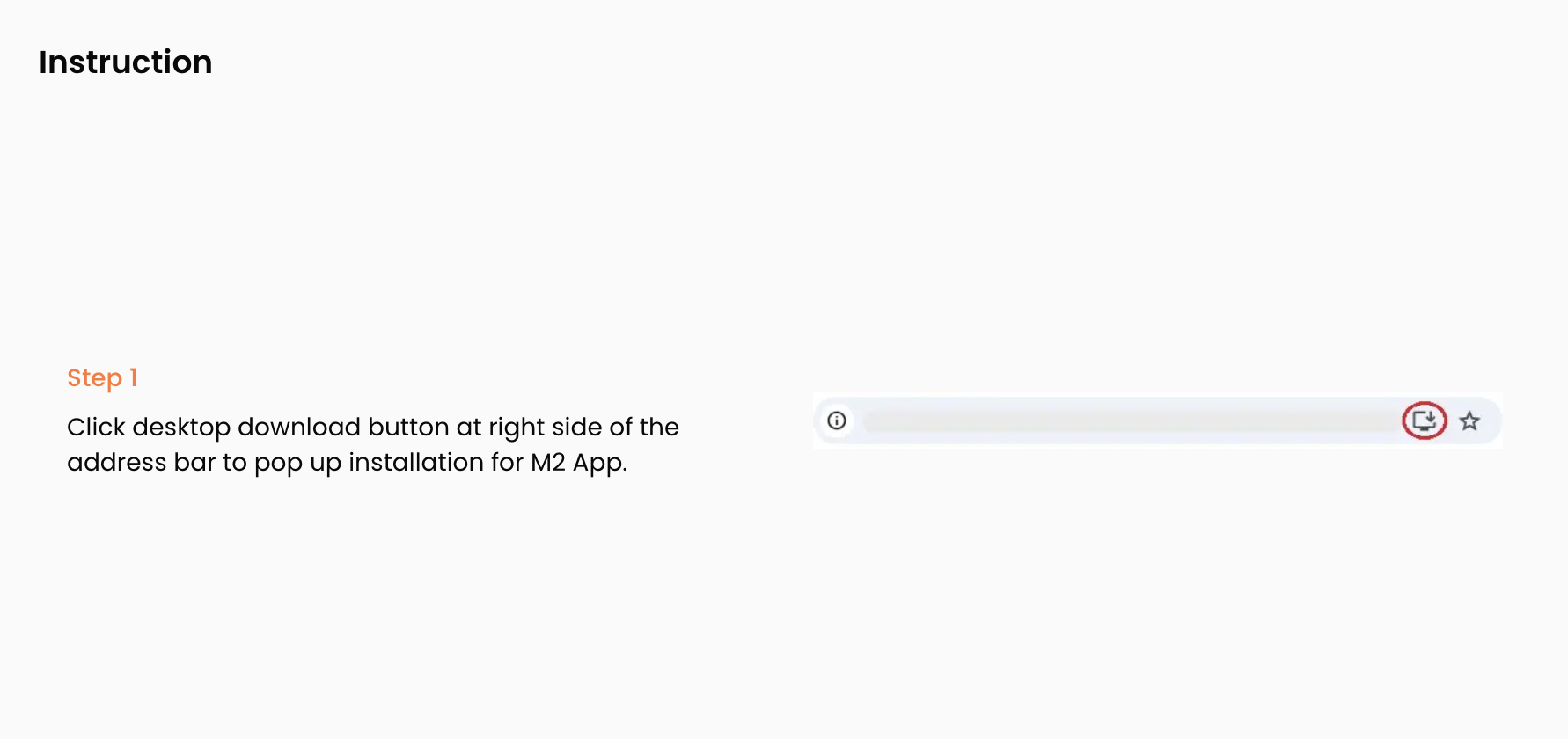
Step 1 — Open the Installation Prompt
Open the official website in a supported desktop browser on Windows or macOS. Select the install icon located on the right side of the browser address bar to display the installation window.
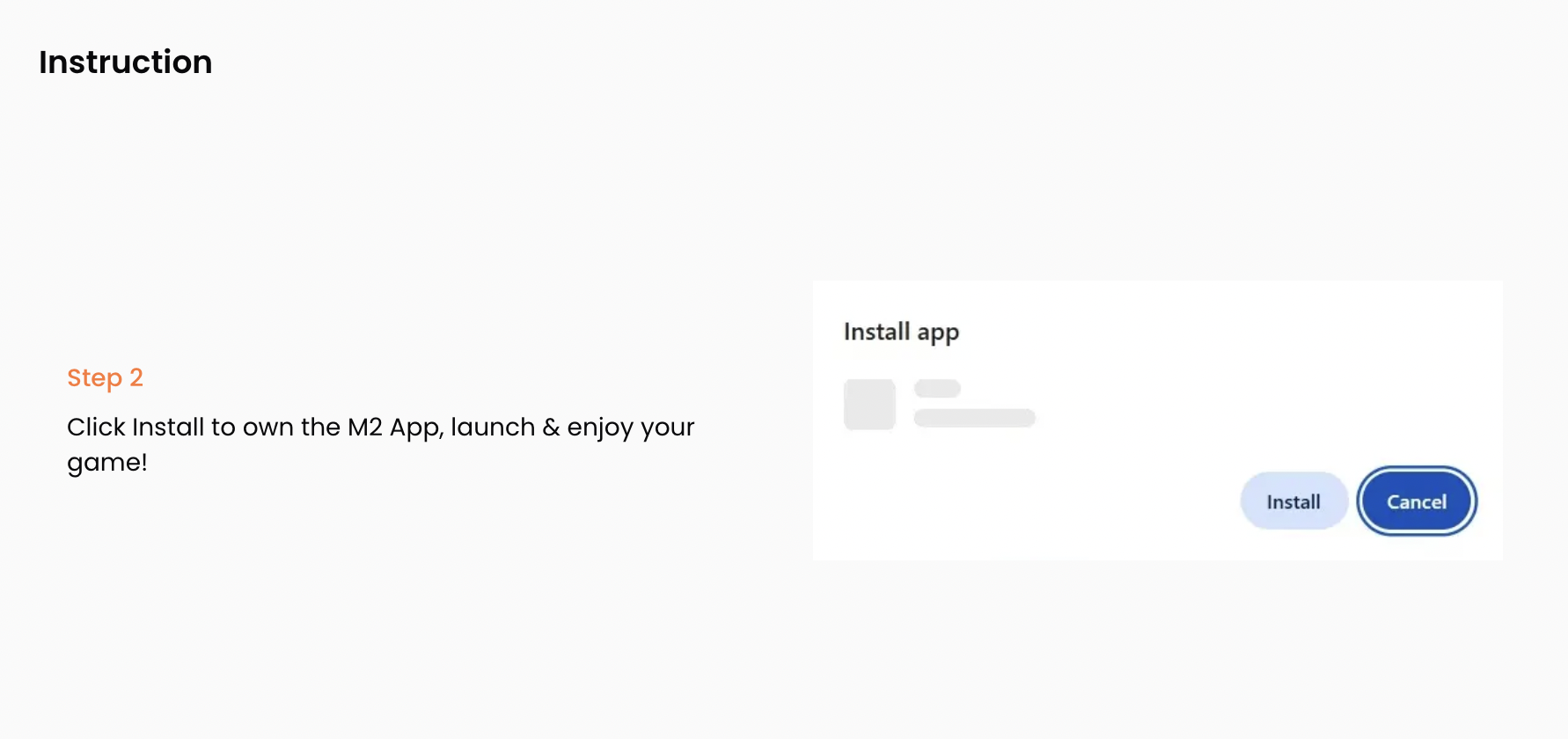
Step 2 — Install the Desktop Application
Select Install to complete the desktop application setup. After installation, launch the application and explore Games, Deposit, or Withdrawal.
iOS Download Steps
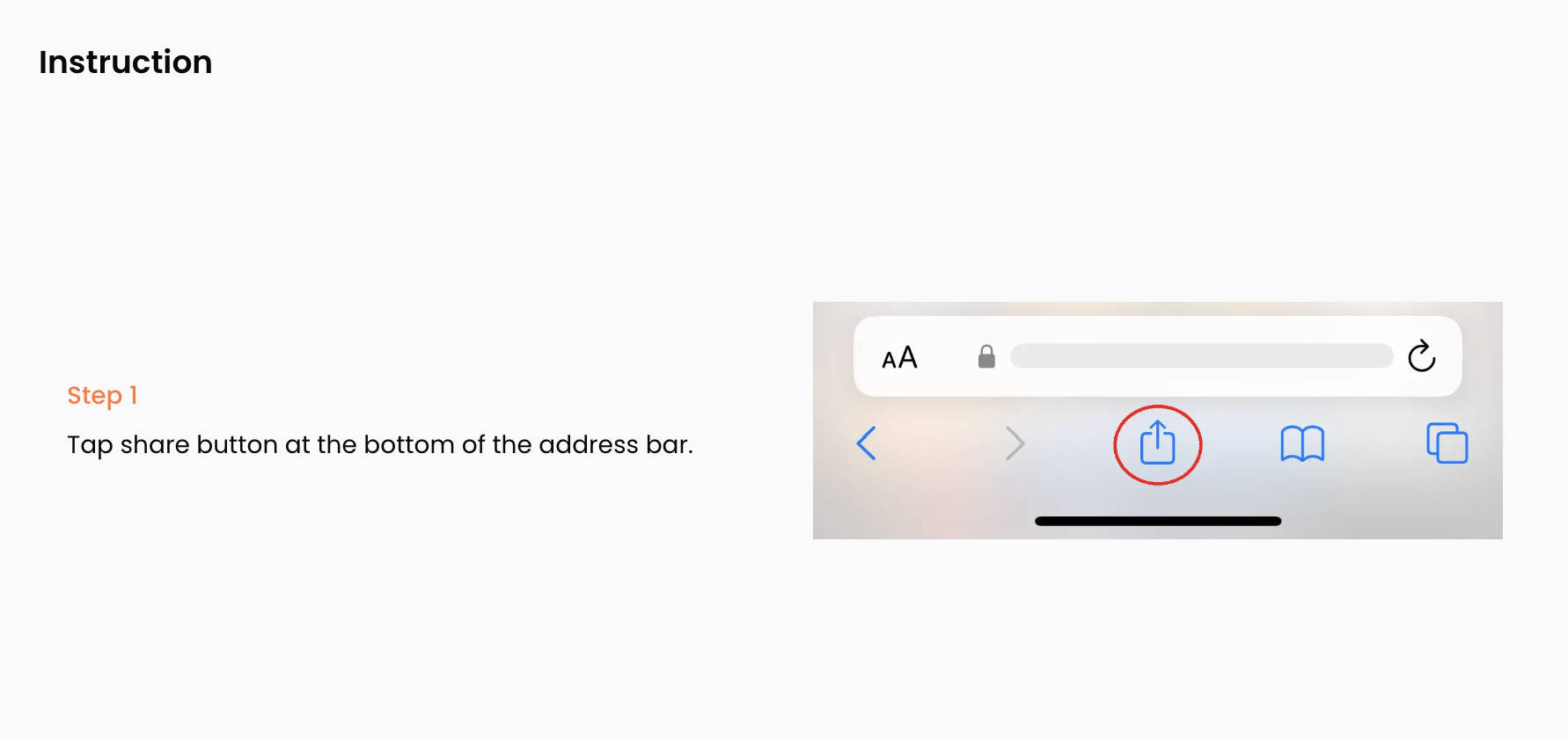
Step 1 — Tap the Share Button
Open the official website using Safari on your iPhone or iPad. Tap the Share button located at the bottom of the browser window to open the sharing menu.
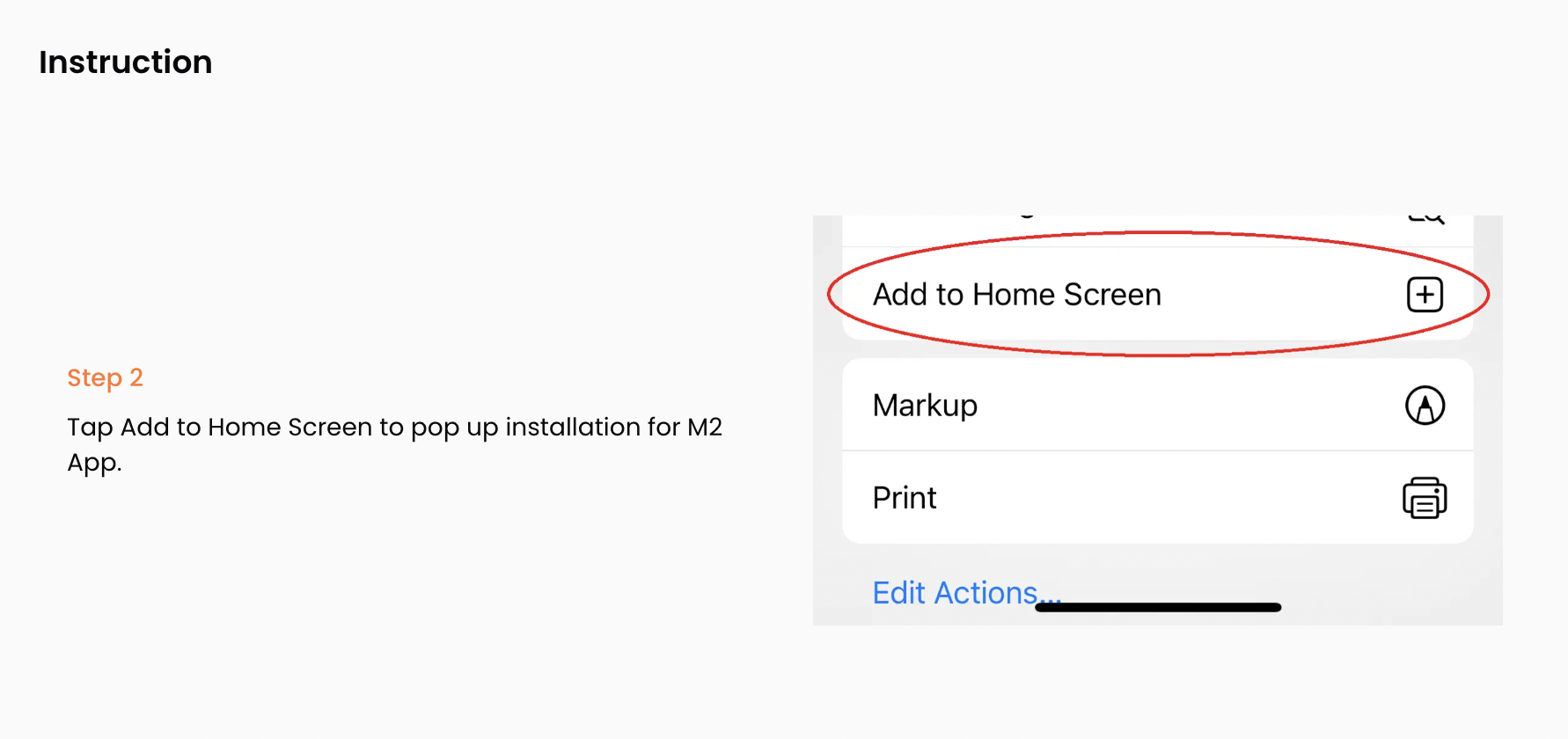
Step 2 — Choose Add to Home Screen
Scroll through the available actions and select Add to Home Screen to display the installation confirmation screen for the application.
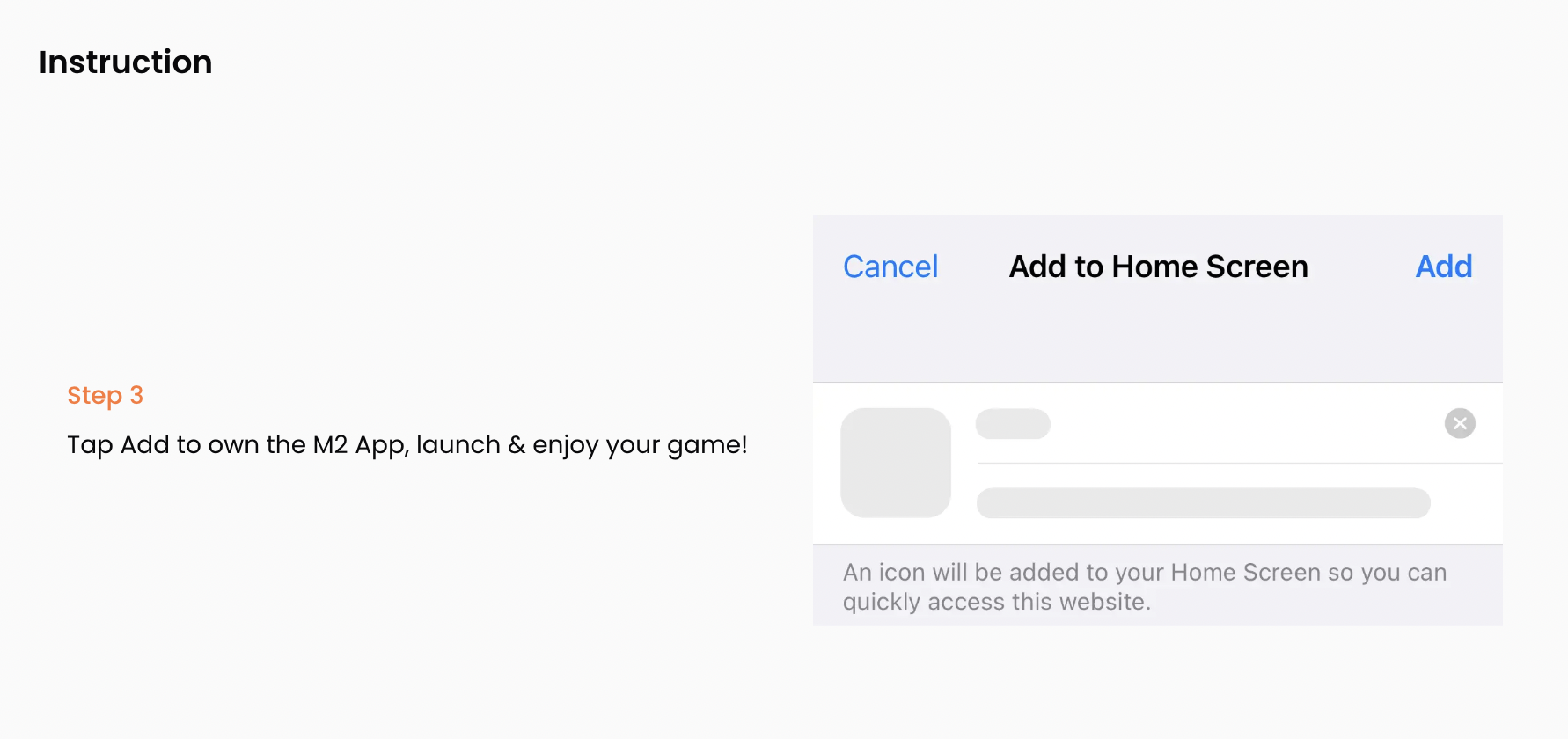
Step 3 — Add the Application
Tap Add to place the application shortcut on your Home Screen. After installation, open the application and continue to Login.
Download Tips
Use the Official Website
Always download or install the application from the official website to help reduce the risk of unofficial or modified installation files.
Keep Your Device Updated
Updating Android, iOS, Windows, or macOS helps improve compatibility, stability, and application security.
Check Your Internet Connection
A stable internet connection helps prevent incomplete downloads or interrupted installations.
Review Terms Before Installation
Read Terms and Conditions and learn more through About Us before using the application.
Frequently Asked Questions
Which devices support the application?
The installation instructions support Android devices, Apple iOS devices, and Desktop computers running Windows or macOS.
Do I need to register before downloading?
The application can be installed first, but a registered account is required before signing in. Complete Register if you do not already have an account.
Is the desktop installation available for Windows and macOS?
Yes. The Desktop installation instructions apply to supported Windows and macOS browsers that provide application installation capability.
What should I do if installation fails?
Check your internet connection, confirm that your browser supports installation, restart the browser if necessary, and then repeat the installation steps. If further assistance is required, review About Us for available support information.
Download the M2 Application Today
Follow the correct installation instructions for Android, iOS, or Desktop devices, install the application securely, and enjoy convenient access to your account across supported platforms.