

M2 Login helps registered members sign in securely and access their accounts using the correct username and password.
Table of Contents
How the M2 Login Page Works
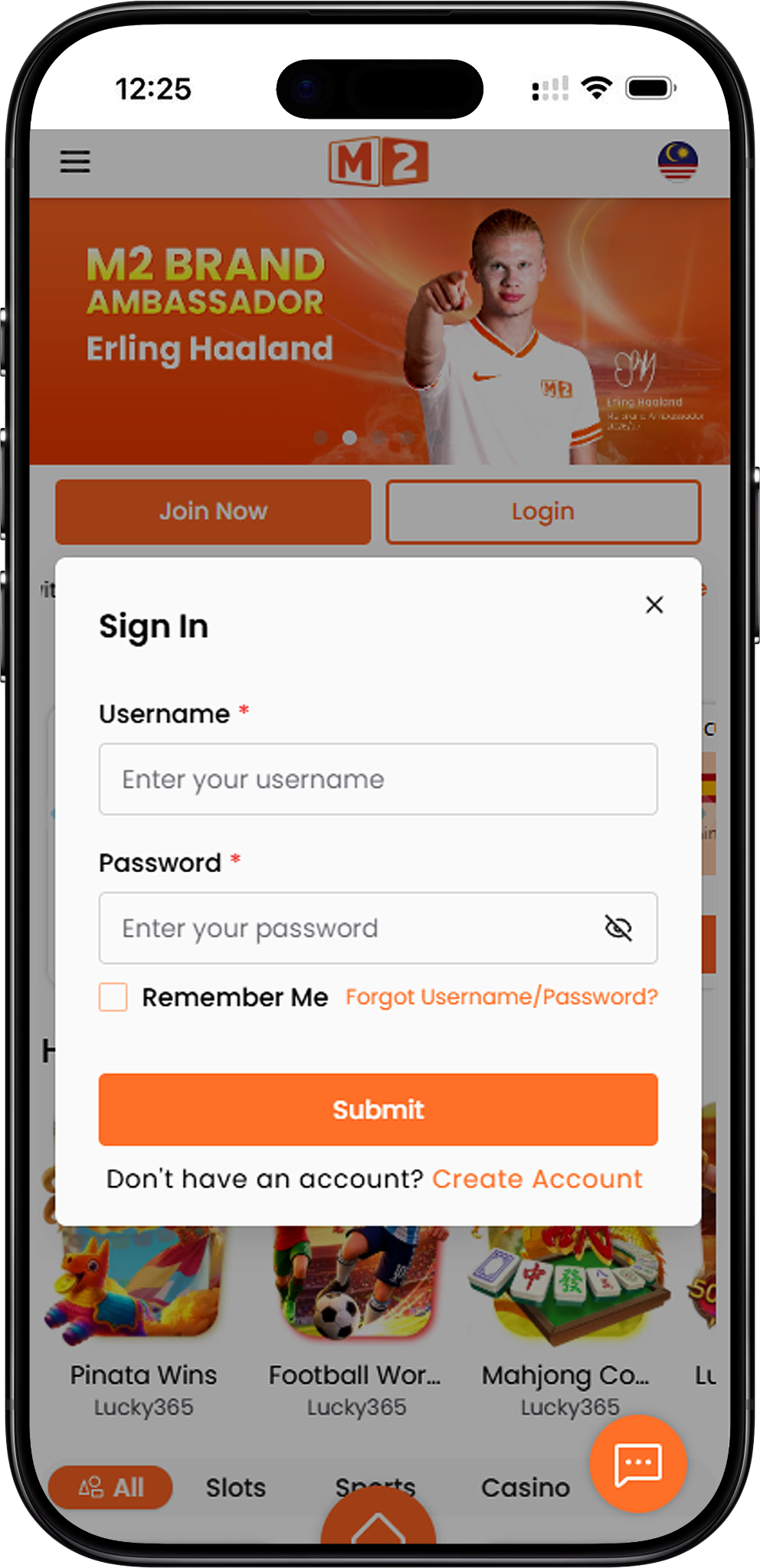
The M2 Login page provides fields for a registered username and password, along with a password visibility control, a Remember Me option, and a recovery link for forgotten account details. New users can select Create Account before attempting to sign in. The official website can also be accessed through the naked URL m2myr.com.
M2 Login Steps
Step 1 — Open the Sign In Page
Visit Login and confirm that the page displays the Sign In form before entering any account information. Members who need general platform information can first visit Home.
Step 2 — Enter Your Username
Type the username created during registration into the required username field. Check the spelling carefully and avoid adding spaces before or after the username. Users without an account should follow Register to complete the sign-up process.
Step 3 — Enter Your Password
Enter the password linked to your account. Use the visibility icon only when it is safe to display the password on your screen, especially when using a shared or public device.
Step 4 — Choose Whether to Use Remember Me
Select Remember Me only on a private and trusted device. Leaving this option unselected is safer when signing in from a shared computer, public device, or temporary browser session.
Step 5 — Submit the Login Form
Review the entered details and select Submit. After successful verification, you can explore Games, view Promotions, or manage account-related services.
Remember Me and Account Recovery
Using the Remember Me Option
Remember Me may keep selected login information available for future sessions. This feature improves convenience, but it should be used only on devices protected by a password, biometric lock, or other reliable security measure.
Recovering a Forgotten Username or Password
Select the Forgot Username/Password link when you cannot remember your credentials. Follow the displayed verification instructions and provide only information associated with your registered account.
Creating a New Account
Users who have not registered can use Register to create an account and complete the required mobile or email verification before signing in.
Login Security Tips
Verify the Website Before Signing In
Check that you are using the correct website and a secure connection before entering account credentials. Avoid login links received from unknown messages, advertisements, or unofficial sources.
Keep Your Password Private
Do not share your password, verification codes, or recovery information with other people. Official support personnel should not need your full password to help resolve an account issue.
Use a Strong and Unique Password
Create a password that is not reused on other websites. A longer combination of letters, numbers, and symbols can reduce the risk of unauthorised access.
Sign Out on Shared Devices
Always sign out after finishing a session on a shared device. Do not enable Remember Me, and clear saved browser credentials when necessary.
Common Login Problems and Solutions
Incorrect Username or Password
Re-enter your credentials carefully and confirm that keyboard settings, capital letters, and spacing are correct. Repeated failed attempts should be avoided because they may trigger temporary security controls.
Forgotten Account Details
Use the recovery option shown on the Sign In form. Complete the required identity verification instead of repeatedly guessing the username or password.
Page or Application Access Issues
Refresh the page, check the internet connection, or try a supported browser. Members who prefer another access method can review Download for relevant app, APK, iOS, Android, or desktop instructions.
Account Access Remains Unavailable
Review Terms and Conditions for account requirements and use the official support channel when the issue cannot be resolved through credential recovery.
Frequently Asked Questions
What information is required to sign in?
A registered username and the matching password are required. Both fields are marked as mandatory on the Sign In form.
Should I enable Remember Me?
Enable it only when using a personal and secure device. It should remain disabled on public, shared, borrowed, or workplace devices that other people can access.
What should I do if I forget my password?
Select Forgot Username/Password and follow the account recovery instructions. Do not create another account solely because the original password has been forgotten.
Can a new user access the login page?
A new user can open the page, but an account must be created before a successful sign-in. Use Create Account to register first.
Access Your Account Securely
Enter your registered username and password, review the details carefully, and submit the Sign In form to access your account.